
The PCI DSS MFA Compliance Gap: Why Admin Passwords Put Your CDE at Risk
Picture a typical SMB that processes card payments: a five-person IT team, a point-of-sale system, and a handful of administrators who manage firewalls, the POS back office, and a payment gateway. Admin credentials are often shared in a spreadsheet, reused across systems, and protected by nothing more than a password.
This is exactly the pattern attackers exploit. If an administrator reuses their POS admin password on a third-party site that later suffers a breach, that credential ends up in a criminal’s database. From there, credential stuffing or simple guessing against the exposed admin panel can give an attacker direct access to the Cardholder Data Environment (CDE) — no malware required. This is the same failure pattern behind the Colonial Pipeline ransomware attack, where a single compromised password with no MFA in place gave attackers their initial foothold into critical infrastructure.
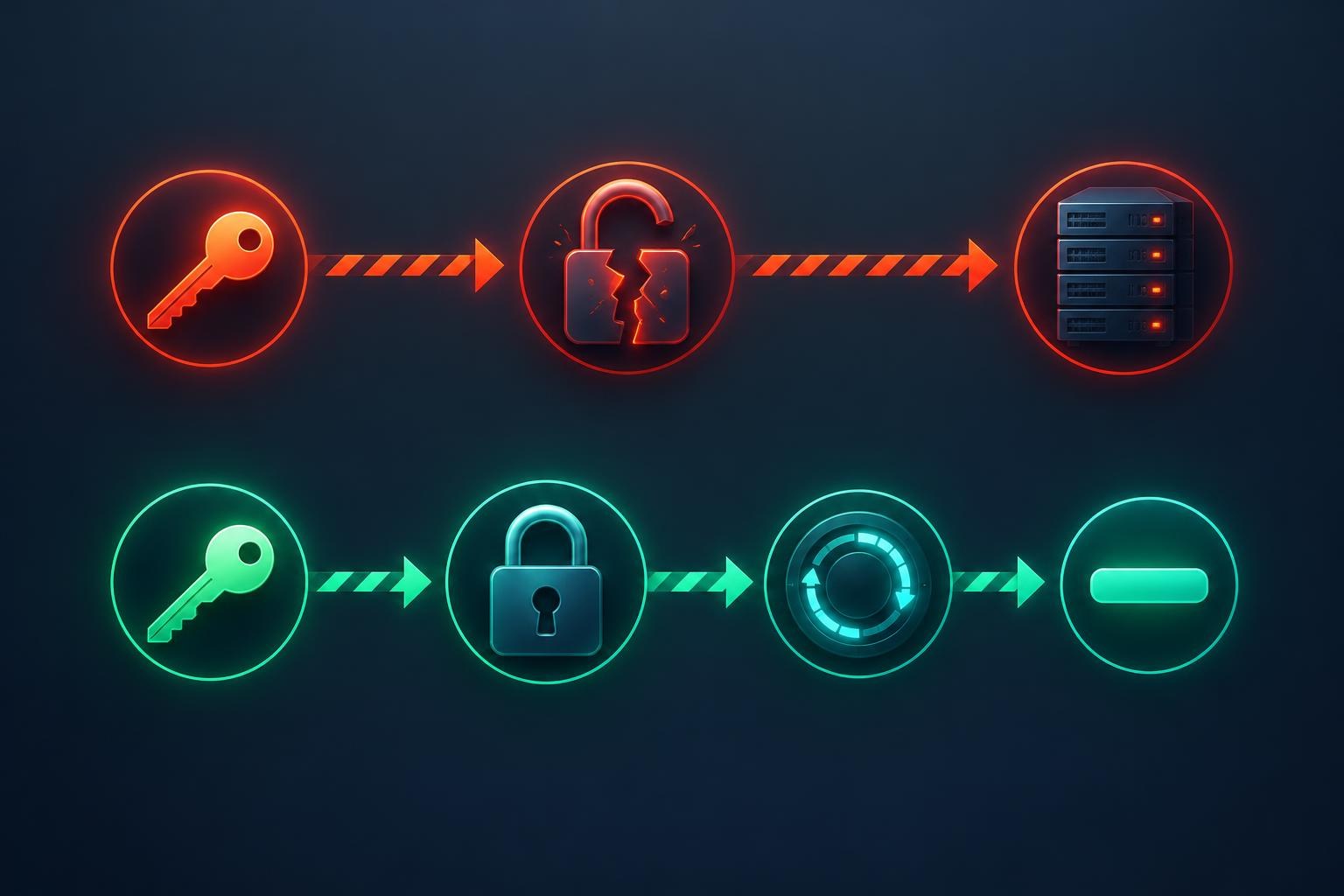
The Payment Card Industry Data Security Standard (PCI DSS) addresses this exact scenario directly. Requirement 8.3.1 (PCI DSS v3.2.1) states:
> "Incorporate multi-factor authentication for all non-console access into the CDE for personnel with administrative access."
In plain terms: anyone with administrative rights to systems in your CDE must prove their identity with at least two independent factors — something they know (a password) and something they have (a one-time code, hardware key, or push approval) — even if they are logging in locally rather than remotely. For a broader comparison of authentication factors, including passwordless options, see our guide on passkeys vs passwords.
For a budget-constrained SMB, buying a commercial MFA/SSO platform can feel out of reach. This is where Bitwarden, an open-source password manager, becomes a practical, auditable control. Bitwarden does two things that map directly onto 8.3.1:
- It stores and generates the TOTP (time-based one-time password) codes administrators use as their second factor when logging into CDE systems that support TOTP-based MFA (firewalls, jump hosts, cloud consoles, database admin panels).
- It protects its own vault — where all those credentials and TOTP seeds live — behind MFA, so the password manager itself never becomes a single point of failure.
This guide walks through deploying Bitwarden’s open-source server (via the community-maintained Vaultwarden implementation), enforcing organization-wide MFA, and generating the audit evidence a QSA (Qualified Security Assessor) will want to see.
A note on versions: PCI DSS v4.0 renumbered and expanded this control as Requirement 8.4.1 / 8.4.2 / 8.4.3, with full enforcement mandatory from 31 March 2025. The control intent — MFA for all administrative and remote access to the CDE — is unchanged, so everything below applies under either version.
This guide is one in InfoSec4TC’s free, budget-conscious PCI DSS series for SMBs — alongside how pfSense helps you meet PCI DSS Requirement 1.2.1 for network segmentation and how Wazuh helps you meet PCI DSS Requirement 10.2 for centralized log monitoring.
Prerequisites for Self-Hosting Vaultwarden
Before starting, have the following ready:
- A Linux host (Ubuntu 22.04 or similar) with at least 1 vCPU / 1 GB RAM — Vaultwarden is lightweight.
- Docker and Docker Compose installed.
- A domain name you control (e.g.,
vault.yourcompany.com) and DNS access to point it at the host. - An SMTP account (for sending organization invites and MFA recovery emails) — a free-tier transactional email provider works.
- Administrative access to the systems your team will protect with MFA (firewall console, jump box, cloud provider, database admin panel) that support TOTP, FIDO2/WebAuthn, or push-based MFA.
- Basic familiarity with Docker and reverse proxies.
Important distinction: The official Bitwarden server (bitwarden/server) is open source under the AGPLv3 license, but some organization features in the official build require a paid license. Vaultwarden is a community-maintained, API-compatible reimplementation in Rust that unlocks organizations, collections, and policies for free self-hosting. This guide uses Vaultwarden because it gives SMBs full MFA-enforcement policy controls at zero licensing cost.
Step-by-Step: Deploying Vaultwarden for PCI DSS MFA Compliance
Step 1: Install Docker and Docker Compose
sudo apt update && sudo apt install -y docker.io docker-compose-plugin
sudo systemctl enable --now docker
This installs the container runtime needed to run Vaultwarden. Verify with docker --version and docker compose version.
Step 2: Create a project directory and data volume
mkdir -p ~/vaultwarden/data
cd ~/vaultwarden
This keeps your vault database, attachments, and RSA keys in a persistent, backup-friendly location.
Step 3: Write the Docker Compose file
# docker-compose.yml
services:
  vaultwarden:
    image: vaultwarden/server:latest
    container_name: vaultwarden
    restart: unless-stopped
    environment:
      DOMAIN: "https://vault.yourcompany.com"
      SIGNUPS_ALLOWED: "false"
      ADMIN_TOKEN: "REPLACE_WITH_LONG_RANDOM_TOKEN"
      SMTP_HOST: "smtp.yourprovider.com"
      SMTP_FROM: "vault@yourcompany.com"
      SMTP_PORT: "587"
      SMTP_SECURITY: "starttls"
      SMTP_USERNAME: "your_smtp_user"
      SMTP_PASSWORD: "your_smtp_password"
    volumes:
      - ./data:/data
    ports:
      - "8080:80"
      - "3012:3012"
SIGNUPS_ALLOWED: "false" is critical — it stops anyone outside your organization from self-registering an account on your server. Verify the file parses with docker compose config.
Step 4: Generate a strong admin token
openssl rand -base64 48Paste the output into ADMIN_TOKEN above. This token guards the /admin panel used to manage users and invitations — treat it like a root password. Verify by confirming the value is at least 48 characters and stored nowhere else in plaintext (use a secrets manager or restrict file permissions with chmod 600 docker-compose.yml).
Step 5: Start the stack
docker compose up -d
docker ps
This launches Vaultwarden in the background. docker ps should show the vaultwarden container as Up. Check logs with docker compose logs -f vaultwarden if it doesn’t start.
Step 6: Put TLS in front of it
Use a reverse proxy (Caddy is the simplest, with automatic Let’s Encrypt certificates):
# Caddyfile
vault.yourcompany.com {
    reverse_proxy localhost:8080
}
sudo apt install -y caddy
sudo systemctl restart caddyPCI DSS requires encrypted transmission of authentication data (Requirement 4); this ensures vault traffic, including login and TOTP seeds, is never sent over plain HTTP. Verify by browsing to https://vault.yourcompany.com and confirming a valid certificate.
Step 7: Create your organization and admin account
Browse to your domain, register the first account (this works because signups haven’t yet been disabled server-wide at this point — or use the /admin panel to invite yourself), then in the web vault go to New Organization and create one for your company. Invite your administrators by email from Organization → Members → Invite User.
Step 8: Enforce two-step login (MFA) at the organization level
In Organization → Policies, enable:
- Two-step login — "Require members to enable two-step login" (this forces every member, including admins, to configure TOTP, WebAuthn, or another second factor before they can access the vault).
- Master Password requirements — set minimum length (12+ characters recommended) and complexity.
- Vault timeout — force automatic lock after a defined period of inactivity.

This is the step that operationalizes 8.3.1 for your *password manager itself*: an administrator cannot retrieve any CDE credential or TOTP seed without first passing MFA on their Bitwarden account.
Step 9: Store and generate TOTP seeds for each CDE system
For every administrative system in scope (firewall console, jump host, cloud IAM console, database admin tool) that supports TOTP:
- In that system’s security settings, generate a new MFA/authenticator secret (usually shown as a QR code or Base32 string).
- In Bitwarden, open the matching login item and paste the Base32 secret into the Authenticator key (TOTP) field.
- Save the item and share it with the relevant admin via an Organization Collection (not individual sharing), so access is centrally revocable.
# Example: pasting a TOTP secret into a Bitwarden item
Authenticator key (TOTP): JBSWY3DPEHPK3PXP
Verify it worked by opening the item and confirming a live 6-digit code is generated and refreshing every 30 seconds — use that code as the second factor when logging into the target system.
Step 10: Revoke access cleanly when staff change roles
Organization → Members → [user] → Remove from OrganizationThis instantly removes the departed admin’s access to shared collections containing CDE credentials and TOTP seeds, satisfying the access-revocation expectations tied to Requirement 8 (user account management) alongside 8.3.1.
Step 11: Export an event log for your QSA
Organization → Event Logs → ExportThis produces timestamped evidence of policy changes, logins, and item access — useful during a PCI DSS assessment to demonstrate the MFA policy has been continuously enforced, not just configured once.
Common Pitfalls and Mistakes When Using Bitwarden for PCI DSS MFA
- Using the free individual plan instead of an organization. Individual vaults can’t enforce policies on other users or provide centralized revocation — exactly what an assessor will ask about. Always use Organizations/Collections for shared admin credentials.
- Leaving
SIGNUPS_ALLOWEDset totrue. This turns your internal vault into a public registration page. Disable it immediately after creating your accounts. - Treating Bitwarden’s own MFA as the CDE’s MFA. Bitwarden MFA protects the vault; it does not automatically satisfy 8.3.1 for the target systems. You still need the TOTP/WebAuthn code to be required by the firewall, jump host, or console itself. Bitwarden’s role is to generate and safeguard that second factor reliably.
- Sharing the admin panel token or master password over chat/email. This defeats the purpose of the control. Use the built-in invitation flow and Collections for sharing.
- No backup strategy. The
datafolder contains the encrypted database and the RSA keys used for item encryption. Losing it without a backup means permanent data loss. - Running without TLS. Login requests and TOTP seeds transmitted over plain HTTP violate PCI DSS Requirement 4 and expose credentials to interception.
Troubleshooting Vaultwarden MFA and TOTP Issues
"Invalid admin token" when accessing /admin
The value in your browser doesn’t match the ADMIN_TOKEN environment variable. Confirm you copied it without trailing whitespace and that the container was restarted after changing docker-compose.yml (docker compose up -d again).
Real-time notifications (e.g., live sync between devices) don’t work
Vaultwarden uses a separate WebSocket port (3012) for notifications. Confirm it’s exposed in your compose file and, if behind a reverse proxy, that the proxy forwards WebSocket upgrade headers.
Invitation emails never arrive
Check docker compose logs vaultwarden for SMTP authentication errors. Confirm the SMTP port matches the security mode (587 for STARTTLS, 465 for implicit TLS) and that your provider allows the sending domain.
TOTP codes are rejected by the target system as "invalid" even though they look correct
This is almost always a clock drift issue. Confirm the Vaultwarden host’s system time is synchronized:
timedatectl status
sudo apt install -y chrony
sudo systemctl enable --now chrony
TOTP is time-based; even a few seconds of drift between the Bitwarden host and the target system can cause rejected codes.
Browser shows a certificate warning
Confirm the Caddy service has successfully obtained a Let’s Encrypt certificate: sudo journalctl -u caddy --no-pager | tail -50. Common causes are DNS not yet propagated or port 80/443 blocked by a firewall, which prevents the ACME challenge from completing.
Conclusion: Bitwarden and PCI DSS Requirement 8.3.1 Compliance
Bitwarden (self-hosted via Vaultwarden) gives an SMB a free, auditable way to operationalize PCI DSS Requirement 8.3.1: it enforces MFA on the vault that holds administrative credentials, and it generates and safeguards the TOTP second factor administrators use to log into the systems inside the CDE. The control cost is engineering time, not a software license — which is exactly the trade-off a budget-constrained security program needs.
If your organization needs a full assessment beyond this one control, InfoSec4TC’s PCI DSS Compliance services cover the complete set of requirements for SMBs and enterprises across the GCC.
Next step: Deploy Vaultwarden in a test environment this week, migrate one high-risk admin account (e.g., your firewall console) into an Organization Collection with TOTP enabled, and document the policy configuration as your first piece of 8.3.1 evidence.
Free Resources
- Vaultwarden Wiki (GitHub) — official setup, configuration, and environment-variable reference for self-hosting.
- Bitwarden Help Center: Policies — documentation on enforcing two-step login and master password policies at the organization level.
- Bitwarden Help Center: Setup Two-step Login — how TOTP, WebAuthn, and other second factors are configured per account.
- PCI Security Standards Council — Official PCI DSS Documents — download the current PCI DSS standard, including Requirement 8 (v3.2.1) and Requirement 8.4 (v4.0).
- NIST SP 800-63B: Digital Identity Guidelines — Authentication and Lifecycle Management — authoritative guidance on authenticator types and MFA strength, useful for justifying TOTP as an acceptable factor.