
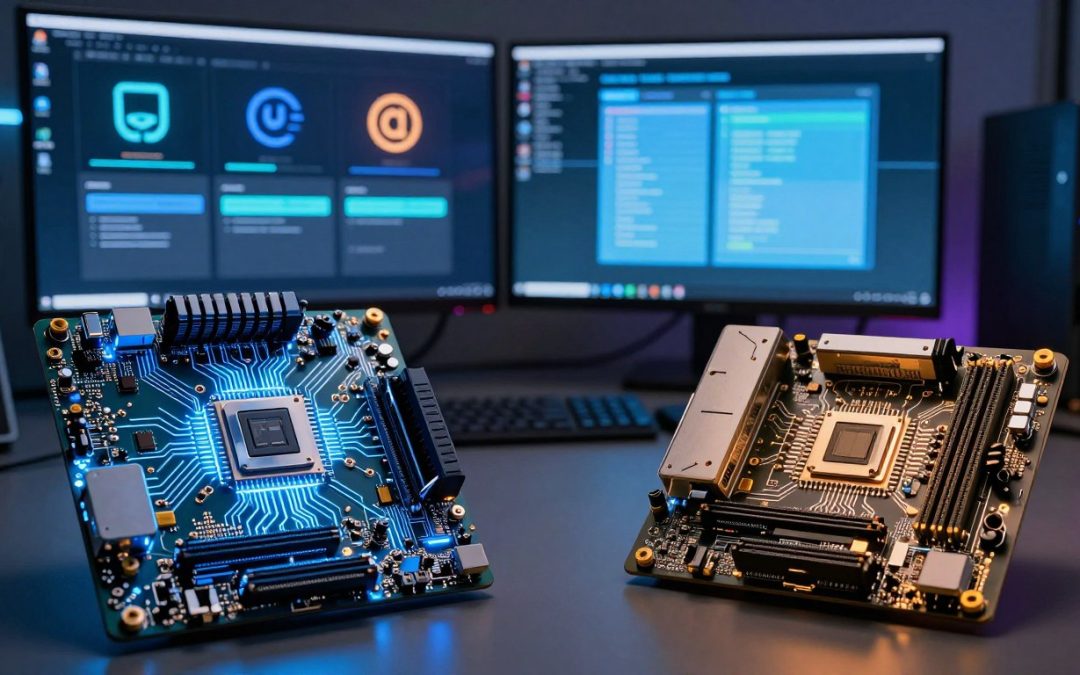
When it comes to understanding how your computer starts up, the boot system plays a crucial role. In modern computing, two prominent boot systems have emerged: UEFI and Legacy BIOS. Understanding the differences between them is essential for making informed decisions about your PC’s configuration.
The boot system is responsible for initializing your computer’s hardware and loading the operating system. With the rise of UEFI, a more advanced and secure boot solution, the traditional Legacy BIOS is gradually being phased out. But what does this mean for you, and which boot system is right for your PC?

Edit
Full screen
Delete
🔍 UEFI vs. Legacy BIOS — Which Boot System Powers Your PC? 💻⚙️
Key Takeaways
- Understanding the boot system is crucial for PC configuration.
- UEFI and Legacy BIOS are two different boot systems.
- UEFI offers advanced security features compared to Legacy BIOS.
- The choice of boot system can impact your PC’s performance.
- UEFI is gradually replacing Legacy BIOS in modern computing.
Understanding Boot Systems: The Foundation of Your Computer
Boot systems are fundamental to the operation of modern computers, acting as the initial step in the startup process. They determine how your computer initializes its hardware and loads the operating system. Understanding boot systems is essential for appreciating how your computer works and for making informed decisions about its configuration.
What Happens When You Press the Power Button?
When you press the power button on your computer, a series of events is triggered. The boot system is activated, beginning with the initialization of the hardware components. This process involves a series of self-tests and configurations that prepare the system for loading the operating system. The boot system acts as an intermediary between the hardware and the operating system, ensuring that the computer is properly configured to load the OS.
The boot process involves several key steps, including the detection of hardware components, loading of firmware, and initialization of the operating system. This complex process happens rapidly, often in a matter of seconds.
The Critical Role of Boot Systems in Modern Computing
The boot system plays a critical role in modern computing by providing a secure and efficient way to start up your computer. Modern boot systems, such as UEFI, offer advanced features like secure boot, faster boot times, and improved hardware support compared to their predecessors, like Legacy BIOS. The boot system is responsible for ensuring that your computer’s hardware is properly configured and that the operating system is loaded securely.
In modern computing, the boot system’s role extends beyond mere initialization. It is also responsible for providing a layer of security and flexibility, allowing for advanced configurations and protections against malware and other threats.
Legacy BIOS: The Original Boot System
Legacy BIOS, the original boot system, has a rich history that spans back to the early days of personal computing. It has been the foundation upon which many computer systems were built, providing a basic yet essential set of functions to initialize hardware and load operating systems.
The History and Evolution of BIOS
The Basic Input/Output System (BIOS) was first introduced in the 1970s by IBM for its personal computers. It was designed to provide a simple interface between the operating system and hardware components. Over the years, BIOS evolved to support new hardware technologies, but its fundamental architecture remained largely unchanged.
Key milestones in BIOS evolution include:
- The introduction of the 286 processor, which added more complexity to BIOS functions.
- The transition from 8-bit to 16-bit and later 32-bit processors, expanding BIOS capabilities.
- The incorporation of Plug and Play (PnP) technology to simplify hardware configuration.
How Legacy BIOS Functions
Legacy BIOS plays a crucial role in the boot process of a computer. When a PC is powered on, the BIOS is the first software to run, performing a series of tests and initializations.
The POST Process Explained
The Power-On Self-Test (POST) is a diagnostic test performed by the BIOS to verify that the system’s hardware is functioning correctly. This includes checking the RAM, CPU, and other critical components.
Memory and Hardware Limitations
Legacy BIOS has inherent limitations, particularly in terms of memory addressing and hardware support. It can only address up to 1MB of conventional memory, and its ability to handle large storage devices is restricted.
Edit
Delete
Technical Limitations of Legacy BIOS
The technical limitations of Legacy BIOS have become increasingly apparent with the advancement of hardware technology. Its inability to support large disk drives, Secure Boot, and modern hardware features has made it less relevant.
The main technical limitations include:
- Limited addressable memory.
- Inability to support GPT (GUID Partition Table) disks.
- Lack of Secure Boot functionality, making systems more vulnerable to malware.
These limitations have driven the development and adoption of more advanced boot systems, such as UEFI.
UEFI: The Modern Successor
As technology advances, UEFI has emerged as the successor to the aging Legacy BIOS. This transition marks a significant improvement in how modern computers boot and operate. UEFI, or Unified Extensible Firmware Interface, brings a plethora of enhancements over its predecessor, including improved security, faster boot times, and better support for modern hardware.
Origins and Development of UEFI
UEFI originated as a replacement for the traditional BIOS, with its development beginning in the early 2000s. Spearheaded by the UEFI Forum, a consortium of major technology companies, UEFI was designed to overcome the limitations of BIOS, such as its reliance on 16-bit processors and its inability to address large storage devices. The result is a more robust and flexible firmware interface that can support complex modern computing environments.
Core Functionality of UEFI Systems
UEFI systems operate differently from traditional BIOS. One of the key features is the EFI System Partition (ESP), which stores the boot loaders for the operating systems installed on the computer.
The EFI System Partition
The EFI System Partition is crucial for the boot process in UEFI systems. It contains the necessary boot loaders and drivers that allow the operating system to start. The ESP is typically stored on a FAT32 formatted partition, ensuring compatibility across different operating systems.
UEFI Runtime Services
UEFI Runtime Services provide a range of functionalities, including variable storage, time services, and capsule update support. These services enable the operating system to interact with the firmware, allowing for more sophisticated system management and updates. This capability is particularly important for ensuring system security and integrity.
The Technical Advantages of UEFI Architecture
The UEFI architecture offers several technical advantages, including support for larger disk sizes, improved boot security through features like Secure Boot, and a more modular design that facilitates easier updates and maintenance. Some of the key benefits include:
- Faster boot times due to optimized boot processes
- Enhanced security features, such as Secure Boot, to prevent malware
- Support for large storage devices beyond 2.2 TB
- Improved manageability through UEFI Runtime Services
Overall, UEFI represents a significant step forward in firmware technology, providing a more secure, efficient, and flexible foundation for modern computing.
🔍 UEFI vs. Legacy BIOS — Which Boot System Powers Your PC? 💻⚙️
When it comes to the boot system of your PC, understanding the differences between UEFI and Legacy BIOS is crucial. Both systems play a vital role in initializing your computer’s hardware and loading the operating system, but they operate in distinct ways.
Key Differences in Interface and Usability
The interface and usability of UEFI and Legacy BIOS differ significantly. UEFI offers a more modern and user-friendly interface, often featuring a graphical user interface (GUI) that supports mouse navigation, whereas Legacy BIOS typically uses a text-based interface that relies on keyboard input.
UEFI’s advanced interface makes it easier for users to configure boot settings and navigate through various options. In contrast, Legacy BIOS has a more rudimentary setup that can be less intuitive for those unfamiliar with it.
Boot Speed and Performance Comparison
One of the significant advantages of UEFI over Legacy BIOS is its ability to offer faster boot times. UEFI is designed to be more efficient and can take advantage of modern hardware capabilities, resulting in quicker system initialization.
The boot speed of UEFI is generally superior due to its optimized architecture and support for faster storage devices. Legacy BIOS, while reliable, often results in slower boot times due to its legacy architecture.
Hardware Support and Compatibility
Hardware support is another area where UEFI and Legacy BIOS diverge. UEFI is more adept at handling modern hardware, including large storage devices and advanced graphics cards.
Support for Modern Storage Devices
UEFI supports GPT (GUID Partition Table), allowing for more than four primary partitions on a single disk and supporting larger storage devices compared to the MBR (Master Boot Record) used by Legacy BIOS.
Graphics Card Initialization Differences
The initialization of graphics cards also varies between UEFI and Legacy BIOS. UEFI can often handle the initialization of modern graphics cards more efficiently, providing a smoother experience during the boot process.

Edit
Full screen
Delete
UEFI vs Legacy BIOS Comparison
In conclusion, the differences between UEFI and Legacy BIOS are pronounced, affecting not just the interface but also boot speed and hardware support. Understanding these differences is key to determining which boot system your PC uses and whether it’s time to consider an upgrade or change.
Security Considerations: UEFI vs. BIOS
Understanding the security implications of UEFI versus Legacy BIOS is crucial for safeguarding your PC. As technology advances, the security features and vulnerabilities of boot systems have become a significant concern.
Secure Boot and Its Importance
Secure Boot is a critical feature of UEFI that ensures only authorized software runs during the boot process. It verifies the digital signature of the bootloader and other components before loading them, preventing malware from hijacking the boot process.
This feature is particularly important in today’s computing landscape, where bootkits and rootkits pose significant threats. By enforcing Secure Boot, UEFI provides a robust defense against such low-level malware.
Vulnerability Comparisons Between Systems
Legacy BIOS, due to its age and simplicity, lacks many modern security features. Its vulnerabilities include:
- Unprotected boot sector
- Lack of authentication for firmware updates
Common BIOS Security Weaknesses
Legacy BIOS is susceptible to various attacks, including BIOS password cracking and firmware modifications. These weaknesses can be exploited to gain unauthorized access or control over a system.
UEFI Security Features and Potential Flaws
While UEFI offers enhanced security through features like Secure Boot and a more modular architecture, it is not without its flaws. Potential vulnerabilities include complex firmware that can hide security issues and the risk of Secure Boot being misconfigured or bypassed.
Protection Against Boot-Level Attacks
To protect against boot-level attacks, both users and manufacturers must take proactive measures. For UEFI systems, ensuring that Secure Boot is enabled and configured correctly is a crucial step. Regular firmware updates and using trusted bootloaders also enhance security.
By understanding the security differences between UEFI and Legacy BIOS, users can make informed decisions about their system’s security and take appropriate measures to protect against potential threats.
How to Identify Your Current Boot System
Identifying whether your PC uses UEFI or Legacy BIOS is crucial for understanding its capabilities and limitations. The process varies slightly depending on your operating system.
Checking in Windows Systems
For Windows users, identifying the boot system is relatively straightforward. You can use the System Information tool or command line methods.
Using System Information Tool
To check your boot system using the System Information tool, press the Windows key + R, type msinfo32, and press Enter. In the System Information window, look for the “BIOS Mode” entry. If it says “UEFI,” your system is using UEFI. If it says “Legacy,” it’s using BIOS.
Command Line Methods
You can also use the Command Prompt to check your boot system. Open Command Prompt as an administrator and type bcdedit. Look for the “path” under the Windows Boot Loader section. If it contains “winload.efi,” you’re using UEFI. If it contains “winload.exe,” you’re using Legacy BIOS.
Identifying Boot Systems in macOS and Linux
For macOS and Linux users, the process is slightly different. On macOS, you can check the System Report to find the Boot ROM Version, which indicates whether you’re using EFI (UEFI). On Linux, you can check the /sys/firmware/efi directory. If it exists, your system is using UEFI.
Visual Differences Between BIOS and UEFI Setup Screens
The setup screens for BIOS and UEFI can also give away which boot system your PC is using. UEFI setup screens are typically more graphical and offer more options than the text-based BIOS screens. As one expert notes, “UEFI firmware has a more modern interface compared to the traditional BIOS.”
By following these steps, you can easily identify whether your PC is using UEFI or Legacy BIOS, helping you make informed decisions about upgrades and troubleshooting.
Switching Between Boot Systems: Possibilities and Limitations
Understanding how to switch between UEFI and Legacy BIOS is crucial for optimizing your computer’s performance and security. This process involves not just changing a setting, but comprehending the broader implications for your system, including compatibility, performance, and security.
Converting from BIOS to UEFI
Converting from Legacy BIOS to UEFI can enhance your system’s performance and security. UEFI offers several advantages, including faster boot times and improved hardware support.
Windows Disk Conversion Process
The conversion process in Windows involves using the built-in MBR2GPT tool. This tool converts the disk from MBR (used by BIOS) to GPT (used by UEFI) without data loss. To use it, you’ll need to boot into Windows Recovery Environment and run the command: mbr2gpt /convert.
BIOS Update Considerations
Before converting, ensure your BIOS is up to date. An outdated BIOS might not support UEFI or could have bugs that interfere with the conversion process. Check your motherboard manufacturer’s website for the latest BIOS update and follow their instructions for updating.
Switching from UEFI to Legacy Mode
Sometimes, you might need to switch from UEFI to Legacy BIOS, typically for compatibility with older operating systems or specific legacy hardware.
When and Why You Might Need to Downgrade
Downgrading to Legacy BIOS is often necessary for running older operating systems that don’t support UEFI. Some legacy hardware or software might also require BIOS.
Step-by-Step Process
To switch from UEFI to Legacy BIOS, you’ll typically need to enter your UEFI firmware settings (often by pressing a key like F2, F12, or Del during boot-up), find the boot options, and change the boot mode from UEFI to Legacy or CSM (Compatibility Support Module). Save your changes and exit. Your computer will then restart in Legacy BIOS mode.
Potential Risks and Precautions
Switching between boot systems carries some risks, including potential data loss or system instability. It’s crucial to back up your data before making any changes. Additionally, ensure you understand the conversion or switching process to avoid errors.
| Boot System | Key Features | Compatibility |
| Legacy BIOS | Simple, text-based interface; limited features | Older systems; some legacy hardware |
| UEFI | Graphical interface; Secure Boot; faster boot times | Modern operating systems; newer hardware |
Practical Recommendations for Different Use Cases
Choosing the right boot system is crucial for optimizing your computer’s performance, whether you’re a gamer, a business professional, or someone who uses multiple operating systems. The boot system you choose can significantly impact your computing experience.
Gaming PCs: Which Boot System Is Optimal?
For gaming PCs, UEFI is generally the preferred boot system due to its faster boot times and improved security features. Gamers can benefit from the faster loading times and the ability to quickly initialize GPUs.
Impact on Game Loading Times
UEFI’s faster boot process can reduce the time it takes to load games, making it a preferable choice for gamers. Studies have shown that systems using UEFI can load games up to 20% faster than those using Legacy BIOS.
GPU Initialization Benefits
The modern architecture of UEFI allows for quicker GPU initialization, which is crucial for high-performance gaming. This results in a smoother gaming experience, especially in demanding games.
Business and Enterprise Considerations
In business and enterprise environments, the choice of boot system can impact remote management capabilities and security policy implementation. UEFI offers advanced features that can enhance these aspects.
Remote Management Capabilities
UEFI provides better support for remote management, allowing IT administrators to more efficiently manage and update systems. This is particularly beneficial in large-scale enterprise environments.
Security Policy Implementation
With its Secure Boot feature, UEFI enables businesses to implement robust security policies, protecting against boot-level attacks and ensuring the integrity of the system.
Dual-Boot and Multi-OS Setups
For users who require dual-boot or multi-OS setups, the choice of boot system can affect the ease of configuration and compatibility. UEFI is generally more versatile in handling multiple operating systems.
| Feature | UEFI | Legacy BIOS |
| Boot Speed | Faster | Slower |
| Security Features | Advanced (Secure Boot) | Limited |
| Multi-OS Support | Better | Restricted |

Edit
Full screen
Delete
UEFI vs Legacy BIOS Comparison
Conclusion: The Future of Boot Systems
The debate between UEFI and Legacy BIOS has highlighted the significant advancements in boot technology. As we’ve explored, UEFI offers enhanced security features, faster boot times, and improved hardware support compared to Legacy BIOS.
Understanding the differences between these two boot systems is crucial for making informed decisions about your computer’s configuration. As technology continues to evolve, the Future of Boot Systems will likely be shaped by the need for increased security, performance, and compatibility.
UEFI is poised to dominate the future of boot systems due to its technical advantages and adaptability to modern computing needs. While Legacy BIOS still has its uses, UEFI’s Secure Boot feature and ability to handle large storage devices make it the preferred choice for contemporary systems.
As we move forward, it’s essential to consider the implications of these boot systems on our computing experiences. By choosing the right boot system, users can optimize their computer’s performance and security, paving the way for a more efficient and secure computing environment.
FAQ
What is the main difference between UEFI and Legacy BIOS?
UEFI is a modern firmware interface that replaces Legacy BIOS, offering a more secure and flexible way to boot operating systems. UEFI supports larger disk sizes, faster boot times, and improved security features like Secure Boot.
How do I know if my computer is using UEFI or Legacy BIOS?
You can check your boot system by looking at your system’s settings or using tools like the System Information Tool in Windows or checking the boot settings in your computer’s firmware interface.
Can I switch from Legacy BIOS to UEFI?
Yes, you can switch from Legacy BIOS to UEFI, but the process varies depending on your operating system and hardware. For Windows, you can use the built-in tool `mbr2gpt` to convert your disk from MBR to GPT, which is required for UEFI boot.
What is Secure Boot, and how does it work?
Secure Boot is a feature of UEFI that ensures only authorized firmware and operating systems can run on your computer. It checks the digital signature of the bootloader and operating system before loading them, preventing malware from loading during the boot process.
Is UEFI more secure than Legacy BIOS?
Yes, UEFI is generally more secure than Legacy BIOS due to features like Secure Boot, which protects against boot-level malware. UEFI also supports more advanced security features and configurations.
Can I use UEFI with older hardware?
UEFI can be used with older hardware that supports it, but the hardware must be compatible. Some older systems may not support UEFI, or their UEFI implementation might be limited.
How does UEFI impact gaming performance?
UEFI can improve gaming performance by allowing for faster boot times and potentially improving the initialization of graphics cards and other hardware. However, the impact on gaming performance is generally minimal.
What are the advantages of UEFI over Legacy BIOS for business use?
For business use, UEFI offers advantages like improved security through Secure Boot, better manageability through features like UEFI firmware updates, and support for larger and more complex storage configurations.
Can I dual-boot operating systems with UEFI?
Yes, UEFI supports dual-boot configurations. You can install multiple operating systems on a UEFI system, and the UEFI firmware will allow you to select which one to boot.
Are there any risks associated with switching to UEFI?
Switching to UEFI can involve risks, such as potential data loss if not done correctly. It’s essential to back up your data and follow the conversion process carefully to minimize risks.